One profile per agent
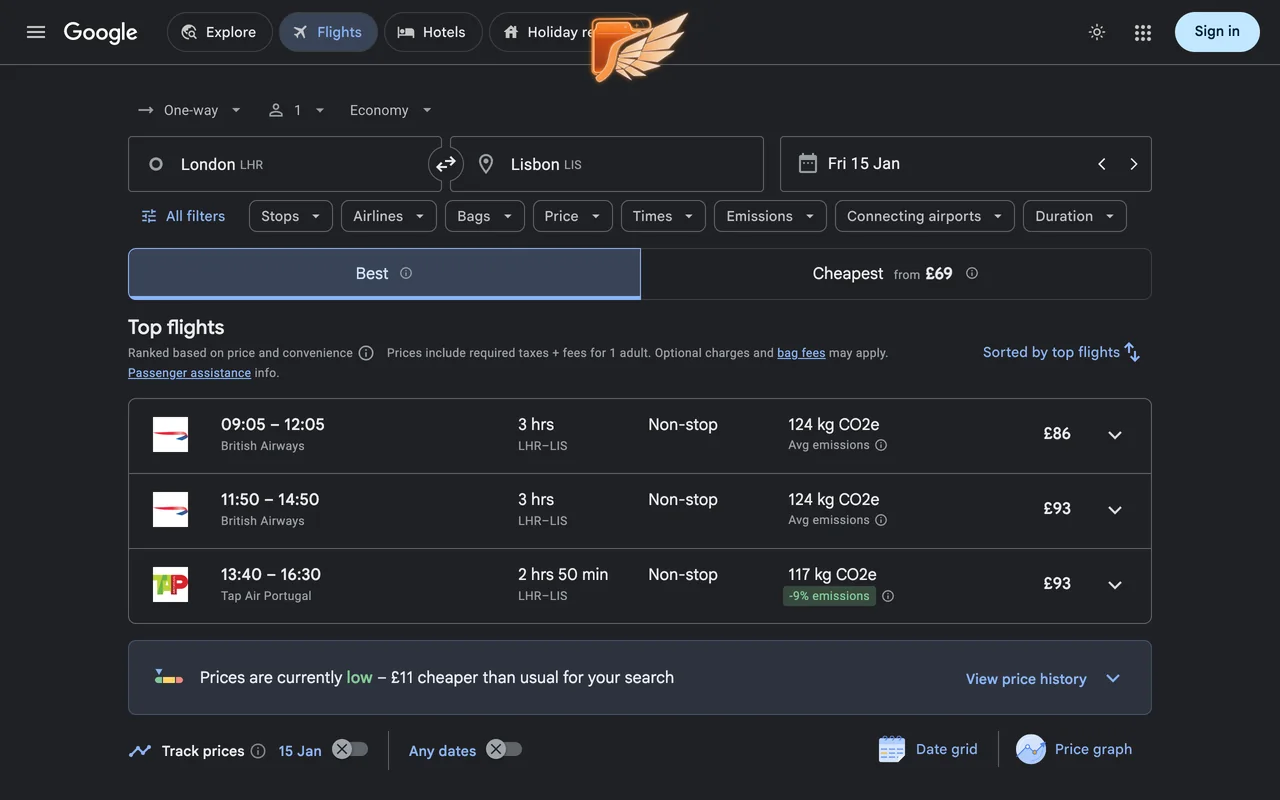
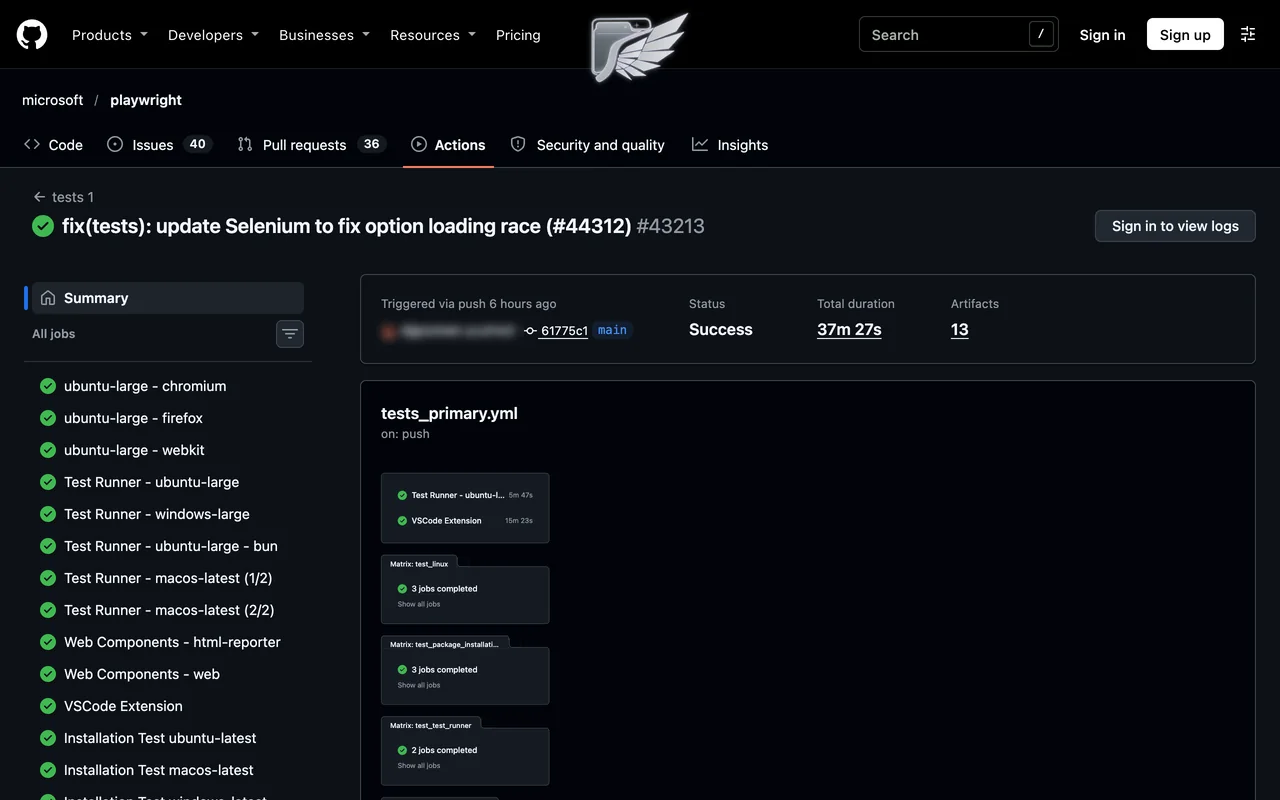
Claude books travel in one profile while Codex watches CI in another. Each keeps its own session state.
Wingman connects Claude, Codex, Gemini or any OpenRouter model, through your agent harness, to your real Chrome via a local, authenticated bridge. Agents work with your existing logins, you see every action, and you decide where automation is allowed.
Get one email when Wingman launches on the Chrome Web Store. Nothing else, and we'll remove you on request.
Connect Wingman in each Chrome profile and give every agent its own lane. Cookies, tabs and logins stay in the profile they belong to — no collisions when agents run side by side.
 12
 7
 23
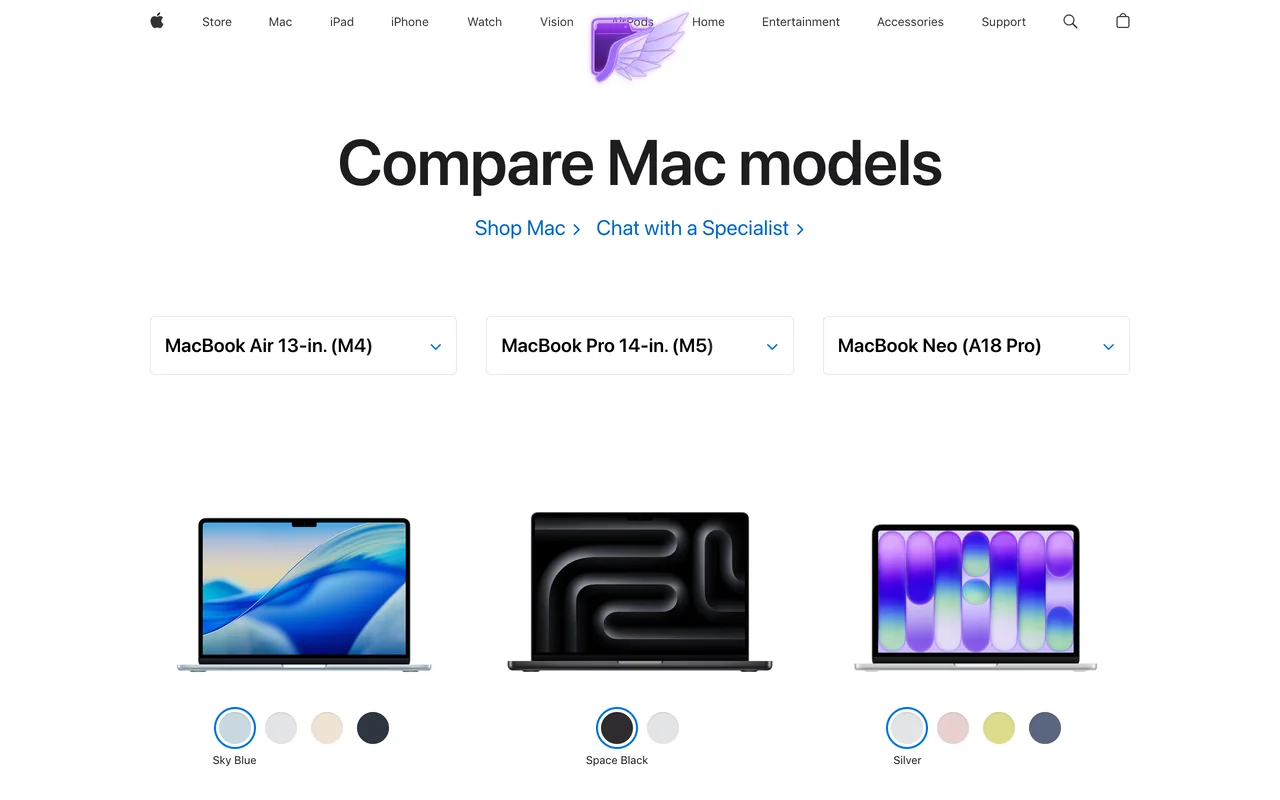
Real pages captured in Chrome. Wingman isn't affiliated with Google, GitHub or Apple.
Claude books travel in one profile while Codex watches CI in another. Each keeps its own session state.
The active tab is outlined in the agent's colour while it works, so you can supervise, pause or take over.
No headless sandbox fighting MFA. Agents use the sessions you're already signed in to — nothing is copied to the cloud.
Built-in checks sit between your agents and your browser. Requested results go only to your chosen AI client or paired agentic harness.
12
navigate google.com/travel/flights Allowed · on your allowlistnavigate www.paypal.com Privacy mode blocked navigate on www.paypal.com because it matches your denylist.read_page sign-in form password → { state: "filled" } · value never readjavascript_execute document.cookie Sensitive actions are locked by Privacy Mode. Unlock them in the Wingman popup for 10 minutes, or disable the lock in Settings.navigate chrome://settings/passwords Cannot access restricted URL (chrome://settings/passwords). Chrome extensions cannot interact with browser-internal pages.click after 15 idle minutes Wingman locked itself after 15 minutes with no agent commands (security idle lock).The messages above are Wingman's own, word for word. Every agent command passes these checks on your machine before it touches the page.
chrome://, file: or javascript: navigationWingman is built so your browsing never becomes our data. Here is exactly where everything goes.
Password, card-number, CVC, one-time-code, 2FA and PIN fields are reported only as filled or empty when an agent inspects a page — never their values.
The last 200 commands are kept locally with the command, tab, session and outcome. URLs, hostnames and titles are stripped — even from error messages.
Each bridge uses a random 128-bit token, rotated when access changes and checked in constant time, so other apps on your machine can't drive your browser.
JavaScript execution, cookie access, downloads, uploads, and network or console capture need an explicit, time-limited unlock.
Agents can't open browser settings, other extensions, DevTools or local files — chrome://, file:, data: and javascript: are blocked.
Paid plans verify a cryptographically signed licence locally. Checking your plan never needs your browsing data.
Read the full privacy policy.
Wingman gives you the switches. Set them once in the extension, and every agent follows the same rules.
Turn on privacy mode and list the sites agents may use. Anything on the denylist is always blocked.
JavaScript, cookies, downloads, uploads and network capture stay locked until you unlock them for 10 minutes.
Passwords, card numbers and one-time codes read as filled or empty — never their values.
Cookie and download tools only work after you grant Chrome's own permission.
The denylist always wins. Settings must be configured. Page-inspection masking does not censor screenshots.
Every agent gets a fixed local lane. Pick the lane in Wingman, pick the model in your AI app, and keep working.
Pick your agent's lane in the Wingman extension settings.
This Chrome profile reconnects to that agent's local bridge.
Pick the model in your AI app and ask it to use the browser.
Optional remote pairing lets an agentic harness — an agent runtime working from its own dashboard rather than your desktop AI app — run supported browser tasks on your machine, through an allowlisted set of tools, with the local bridge still in charge.
Generate a short-lived code in your agentic harness's dashboard.
Enter it under Remote Pairing in the Wingman extension.
The harness gets an allowlisted set of tools; the local bridge stays in charge.
Uses an allowlisted set of browser tools. Keep the local bridge running.
The Chrome Web Store listing is coming soon. Once it's live, add Wingman to each profile you want an agent to use.
Run wingman setup. It starts the local bridge and writes MCP config for Claude, Codex and Gemini.
Choose the agent's connection in the popup, then ask your agent to use the browser.
$ wingman setup
✓ Local bridge listening on 127.0.0.1:7867 (claude)
✓ MCP config written for Claude, Codex, Gemini
$ wingman run tabs_context
$ wingman doctor
Try Wingman with your agents.
For developers automating daily.
High-volume work and agentic harness pairing.
Browser actions run through a bridge on 127.0.0.1. Results go only to the AI client you connected (or your paired agentic harness). Wingman's cloud handles sign-in, licensing and billing — not your cookies or page content.
When an agent inspects a page, password, card-number, CVC, one-time-code, 2FA and PIN fields are reported only as filled or empty. Note that masking applies to page inspection — screenshots show what's on screen, so use domain rules to keep agents off sensitive sites.
Your settings, bridge token and a 200-entry activity log live in the extension's local storage on your computer. The log records commands and outcomes only — no URLs, titles or page content. Our servers hold just your account, plan and billing status.
Only until the idle lock kicks in. After 15 minutes without commands the bridge locks, and you unlock it from the extension popup.
Claude (Desktop and Code), Codex and Gemini have dedicated lanes. Any other model, including anything on OpenRouter, works through an MCP-capable agent harness on a custom port.
Yes. Add the domains to the denylist — it always wins over the allowlist — and lock sensitive tools behind a time-limited unlock.
Get one email when Wingman launches on the Chrome Web Store. Nothing else, and we'll remove you on request.